Get Inspired
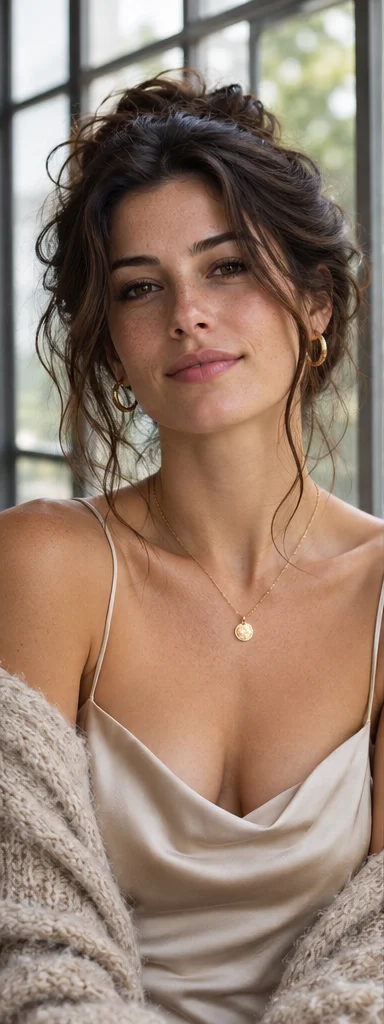
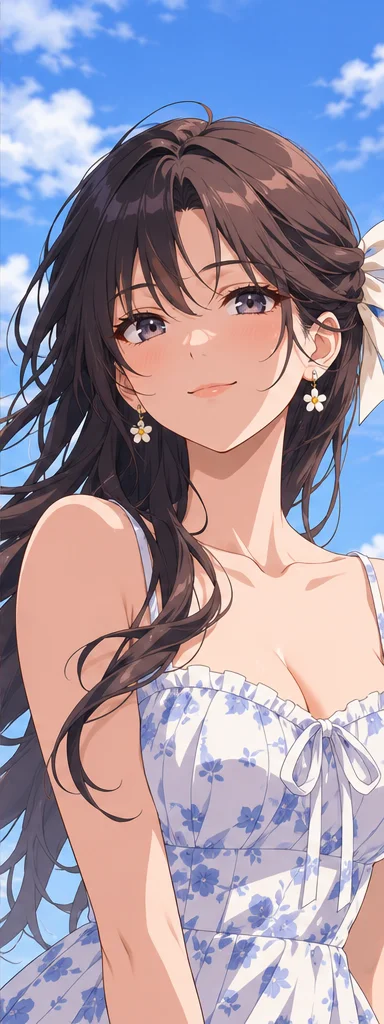
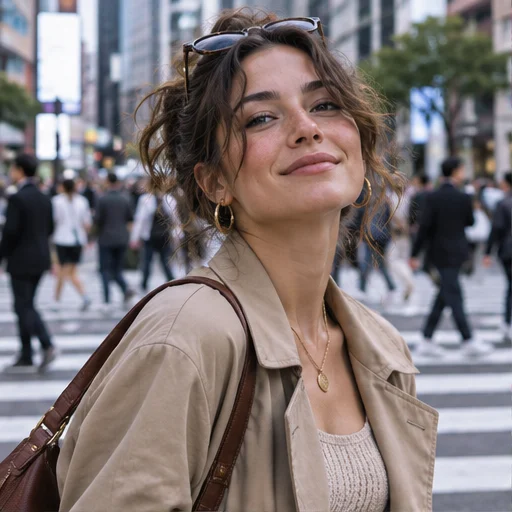
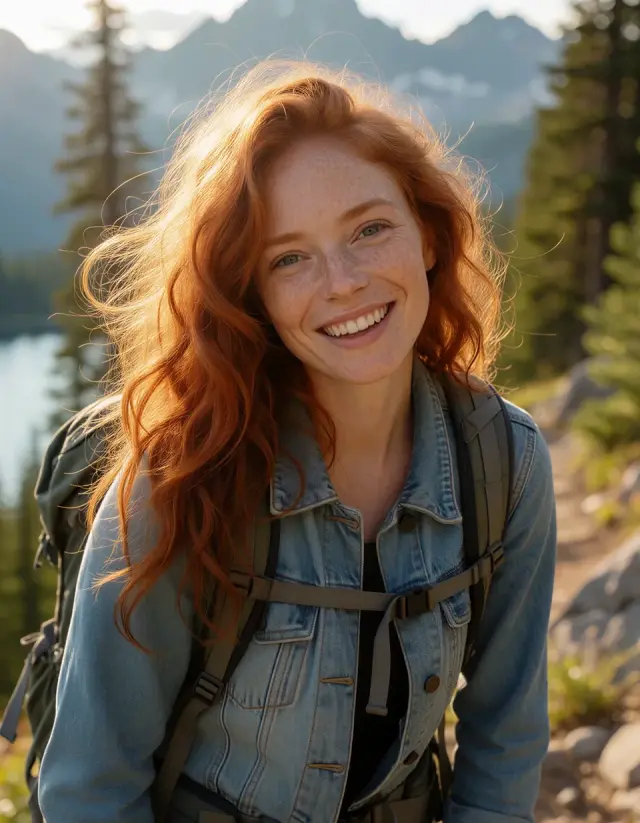
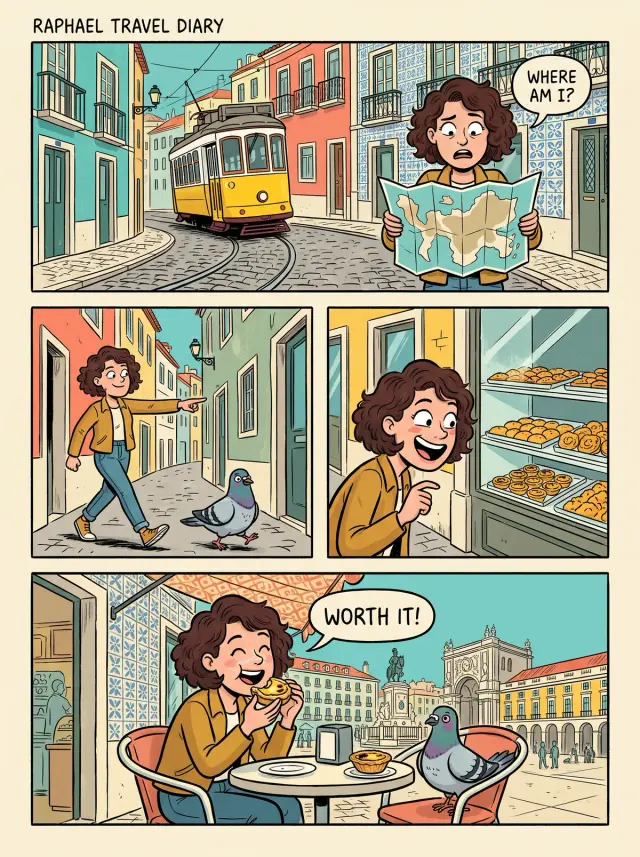
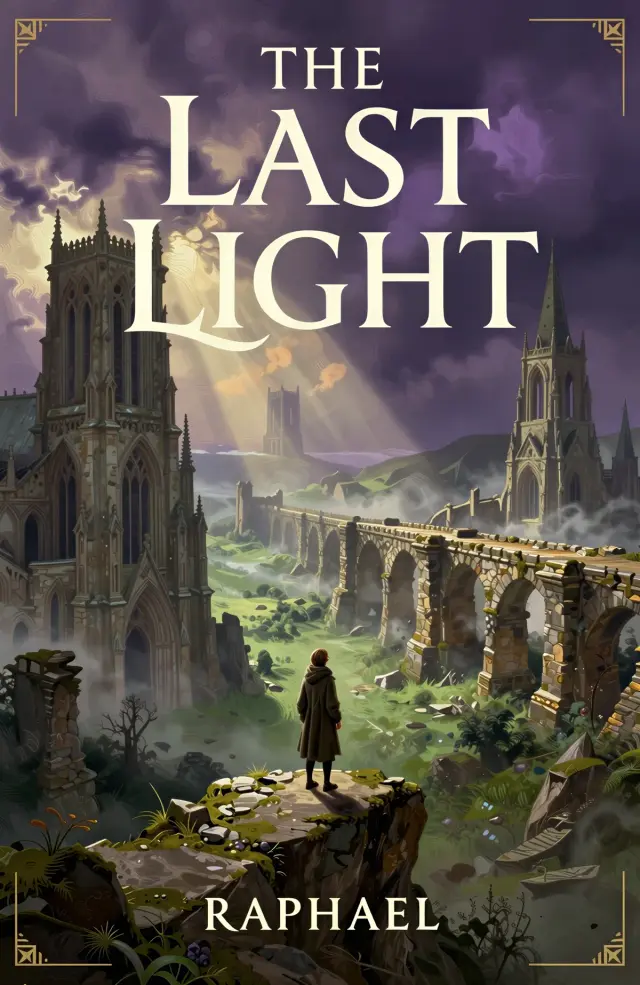
Image examples from Raphael AI. Try a related prompt in Girlens.
From a text prompt to a finished image
Start with one clear sentence
Describe what you want to see before adding details about light, framing or style.
Main subject + action or setting + framing + light and color + medium
Too vague: A beautiful forest.
More specific: A narrow path through tall pine trees after rain, eye-level view, soft morning mist, deep green tones, landscape photography.
Explore a different style
Keep the subject and change the style in your prompt: try an editorial photograph, watercolor or comic illustration. Switch models when another option is available.
Add words to the image
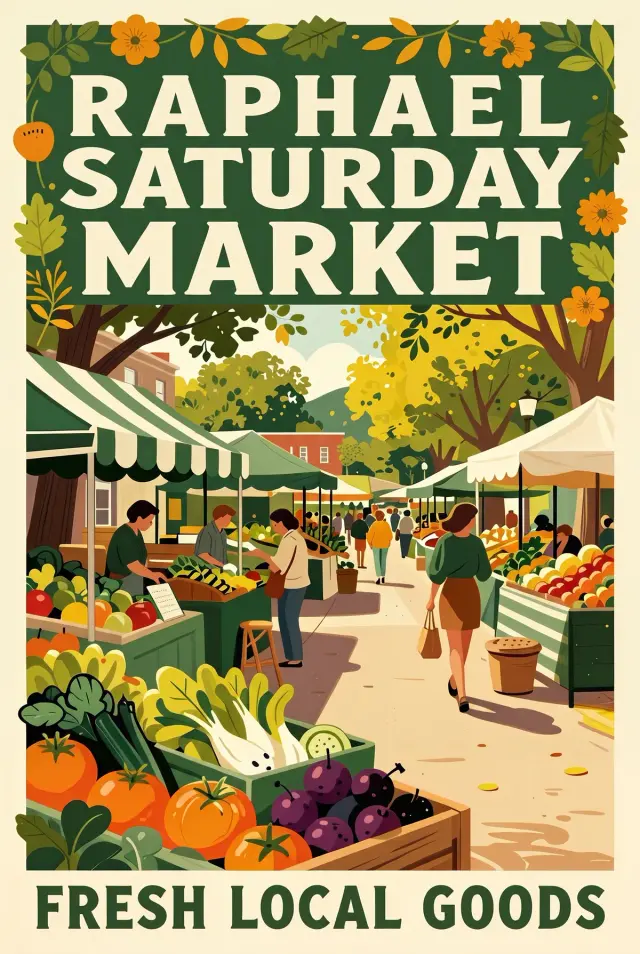
Put the exact words in quotation marks and specify their placement. Check spelling and lettering before publishing.
Create for the format you need
Use a wide frame for a cover, a square crop for a product concept, or a portrait ratio for a poster. Leave room for any headline you plan to add later.
Keep Exploring Girlens
Image to Image
Start with a reference and describe what you want to keep or change.
Frequently Asked Questions — Text to Image
What is AI text-to-image?
It turns a written description into a picture. Describe the subject, setting and style, then choose a model and generate.
What makes Girlens AI text-to-image different?
You can start with a prompt, add a reference if needed and see the model’s credit cost before generating.
Which AI image models are supported?
The editor shows the models available for your inputs. Dimmed options are not available for generation.
How many credits does a generation cost?
The Generate button shows the current model’s cost for one image. You can buy credits as needed with a one-time pack.
Can I use generated images commercially?
Check the Terms of Service, any applicable model rules and third-party rights before publishing. Buying credits does not grant rights to material you do not own.
How do I write a better image prompt?
Start with the subject and scene, then describe framing, light and style. Change one detail at a time when refining the result.
What aspect ratios and image sizes are supported?
Choose from the ratios shown for your selected model. The model determines the output dimensions; this editor does not offer a separate resolution setting.
Can I keep editing after generation?
Revise the prompt and generate again, or use the result as a reference in Image to Image to describe what to keep and what to change.